
Softaken Case Study: Migrating 58,000 Business Contacts from Excel to vCard for Enterprise
Jul 16, 2026
story
Seeking
Visibility


Case Study Overview
A national insurance company was preparing to replace its existing employee smartphones with new Android and iPhone devices. For years, the company stored customer, employee, vendor and partner contact information in dozens of Microsoft Excel spreadsheets maintained by different departments.
Most smartphones and email applications do not allow direct import of Excel files, so the IT team had to convert each contact to the vCard (VCF) format. The goal was to complete the migration in four days before the new devices were distributed, while maintaining names, phone numbers, email addresses, company information, addresses and other contact information.
Background of the project
- Industry: Insurance
- Number of Staff: 520
- Sales Representatives: 238
- Total Contacts: 58,000
- Excel Files: 97
- Total Size of Spreadsheet: 3.8 GB
- Largest Excel File: 182 MB
- Project Duration: 4 Days
- Source Format: Microsoft Excel (.XLS/.XLSX)
- Output Format: vCard (.VCF)
Understanding File Formats
Excel File
Microsoft Excel is a popular tool to store and process business-related data in spreadsheet format. Excel is easy to edit and organize so a lot of companies maintain customer databases, employee directories, supplier lists, and sales contacts in it.
vCard
A vCard (VCF) file is a standard file format for storing and sharing contact information. It works on Android phones, iPhones, Microsoft Outlook, Gmail, Apple Contacts, Thunderbird and lots of CRM applications. A vCard is a file that contains names, phone numbers, email addresses, company names, websites, postal addresses and other contact information for one person.
Why Export Excel Contacts to vCard?
The company needed a format that employees could easily import into their smart phones and email applications. By converting Excel spreadsheets to vCard files, we could avoid creating contacts manually, make deployment easier and ensure that the full contact information was available on different devices and platforms.
Proven Methods for Excel to vCard
Manual Method
Initially, the IT department tested manual method by importing contacts from Excel into Microsoft Outlook, then exporting each contact individually as a vCard file.
Manual Test Results
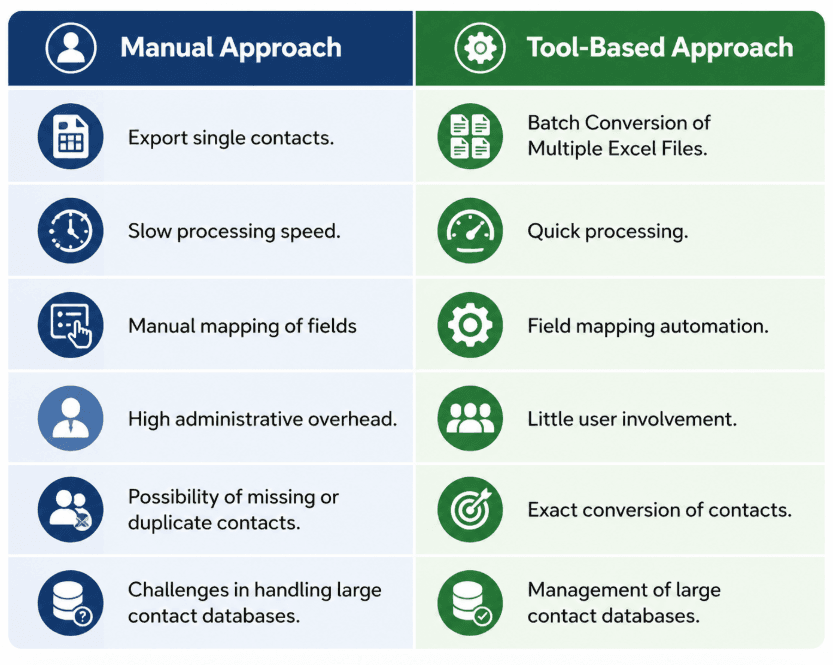
Pilot test with 2,000 contacts identified a number of challenges:
- The process took almost nine hours to complete.
- Contact fields needed manual mapping.
- Duplicate contacts were seen in testing.
- Individual exports were time-consuming.
- We were not able to scale the process to 58,000 contacts.
Problems with the Manual Method
- Very time-consuming for large contact databases.
- High rate of duplicate or missing contacts.
- Manual field mapping requires admin effort.
- Managing multiple Excel files became a challenge.
- The deadline for the project could not be met with this approach.
Tool-Based Solution
To perform the migration in the best way, IT department adopted Softaken Excel to vCard Converter. The software converted several Excel files into standard VCF files and preserved contact details, formatting and field mappings throughout the conversion process.
Results Based on Tools
The final migration report showed the following results:
- Excel Files Converted: 97
- Converted Contacts: 58,000
- Data Processed: 3.8 GB
- Processing Time Total: 42 minutes
Project Outcomes
The organization has completed the migration successfully with the following results:
- 100% of contacts converted.
- No records of lost contacts.
- Complete preservation of contact information.
- Works successfully on Android devices and iPhones.
- Project completed ahead of the planned deployment date.
Once employees received their new devices, they had instant access to all business contacts.
Manual Approach vs Tool-Based Approach
The Impact of the Tool on the Organization
Batch Conversion: Converted dozens of Excel spreadsheets at a time.
Complete Contact Retention: Names, phone numbers, email addresses, companies and postal addresses all survived.
Automatic Field Mapping: Excel columns are automatically mapped to vCard fields.
Multiple vCard Versions: The generated vCard files can be used with many devices and applications.
Bulk Contact Migration: Converted thousands of contacts in one go.
Contact Information: No changes in the contact details.
Easy-to-Use: Junior IT staff were able to do the migration with basic knowledge.
Wide Compatibility: Generated VCF files are compatible with Android, iPhone, Outlook, Gmail, Windows Contacts and Apple Contacts.
Where the Tool Falls Short
- Only available for Windows operating systems.
- Excel files must be properly formatted before conversion.
- The trial version has a limited number of contact conversions.
- Spreadsheets must be unlocked if they are password-protected.
Steps involved in the migration
- Download the app and install it.
- Open the software.
- Browse and add Excel files.
- Look at the contact information.
- Map Excel columns to the correct vCard fields.
- Select the vCard version you want.
- Select the destination folder.
- Begin the conversion process.
- Allow the process to complete.
- Validate the VCF files produced.
- Import the contacts to smartphones or email applications.
Best Practices for Converting Excel to vCard
Tips for Successful Conversion
- Make sure to back up all Excel files before you start.
- Remove duplicate contacts in advance.
- Check that column headings are correct.
- Try a small batch before you convert the whole database.
- Check the generated VCF files after conversion.
- Store the converted files in a safe place.
Things to Remember
- Make sure to close Microsoft Excel before starting the conversion.
- Make sure there is enough disk space.
- Verify phone number format.
- Use the same contact fields in all spreadsheets.
FAQs (Frequently Asked Questions)
Why did the company create a vCard from Excel Contacts?
The organization needed a contact format that employees could easily import into smartphones, Outlook, Gmail, and other applications that support VCF files.
How many contacts were converted?
Conversion of about 58,000 business contacts was achieved.
Did we lose any contact information?
No. All supported contact fields were kept intact during the migration.
How long did the conversation last?
It took about 42 minutes for the migration.
Are the generated VCFs compatible with Android and iPhone?
Yes. The exported files were successfully imported into Android devices, iPhones, Outlook, Gmail and Apple Contacts.
Why was the manual approach not chosen?
The manual process was too time-consuming, had excessive field mapping, and could not meet the four-day deployment deadline of the organization.
Conclusion
This case study explains how an insurance company successfully converted 58,000 business contacts from Excel spreadsheets into vCard files ahead of a company-wide mobile deployment. The automated solution also kept contact information, kept data accurate, and ensured compatibility across multiple platforms, while significantly reducing processing time compared to the manual approach. This allowed the IT team to complete the migration well ahead of schedule and employees were able to access their business contacts immediately on their new devices.
- Technology
- Digital Skills
- Global